Manage inbox + calendar
1. Create a Chief of Staff thread
In the ChatGPT desktop app, switch to Codex and start a new thread called “Chief of Staff.”
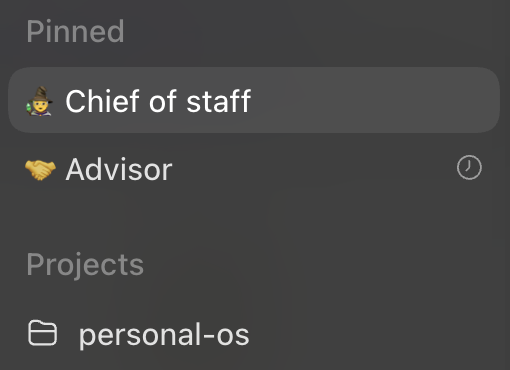
Hover over the thread and hit the … button to pin it to the top so it’s easy to find. Give it a fancy wizard (🧙) emoji because what we’ll do next will feel like magic:
2. Use it to manage your emails
Paste this into your Chief of Staff thread:
Review my email activity over the past 30 days and return:

1. The most important emails or follow-ups that need my attention. For each, explain why it matters, when I should respond, and link the thread.
2. Subscriptions or recurring emails I should consider canceling.
You should get a short list of important emails and unsubscribe candidates like this:
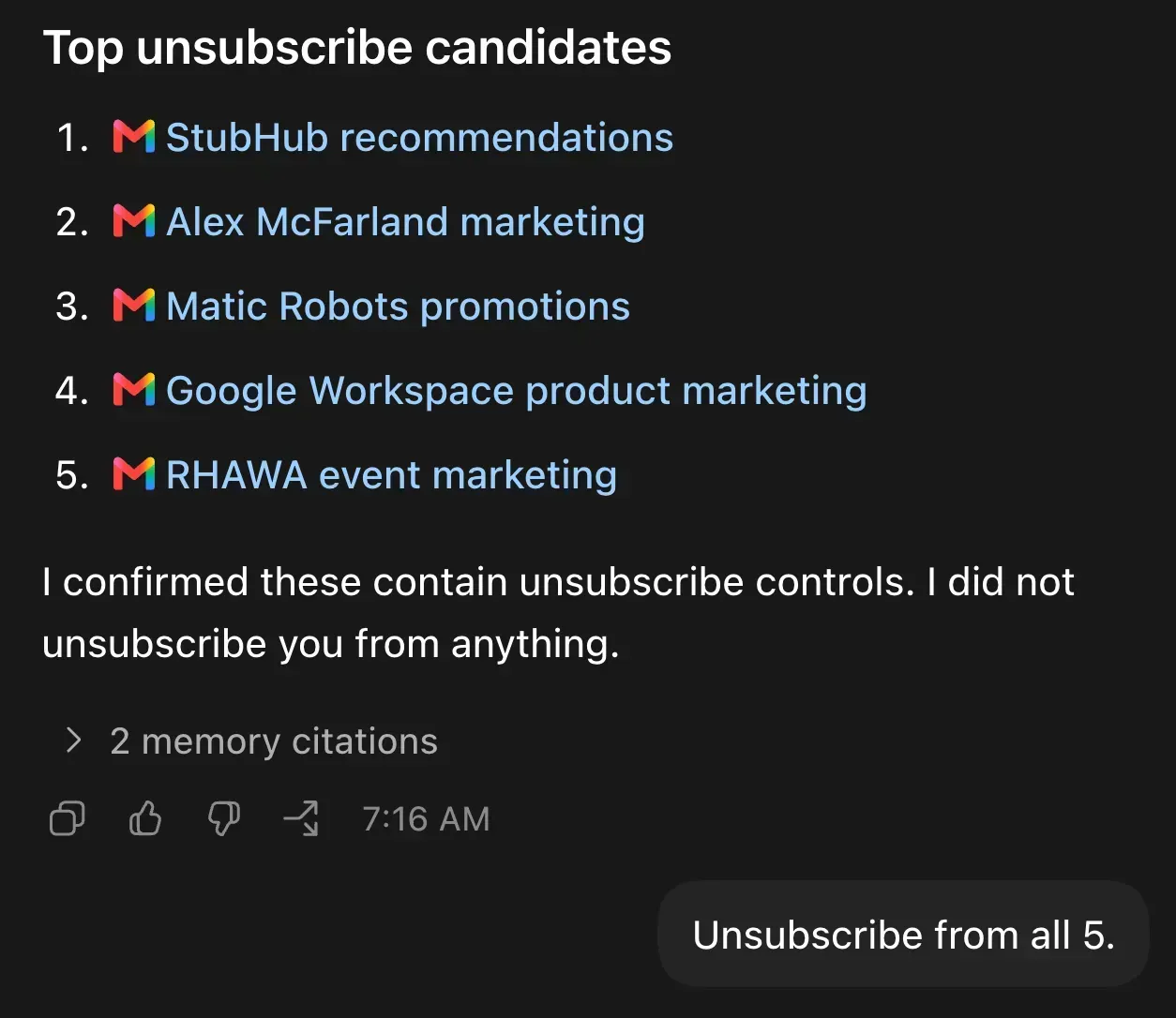
Decide which emails you want to unsubscribe from (not my newsletter I hope 😱) and tell ChatGPT something like “Unsubscribe from 1-4 but keep 5.” ChatGPT will use its browser to click the unsubscribe links for you.
3. Draft replies in your voice
Before you get AI to draft emails for you, let’s teach it your voice with an /email skill.
A skill is just an AI prompt saved in a text file. We’ll go deeper into skills later in this course, but for now, just paste this into your Chief of Staff thread:
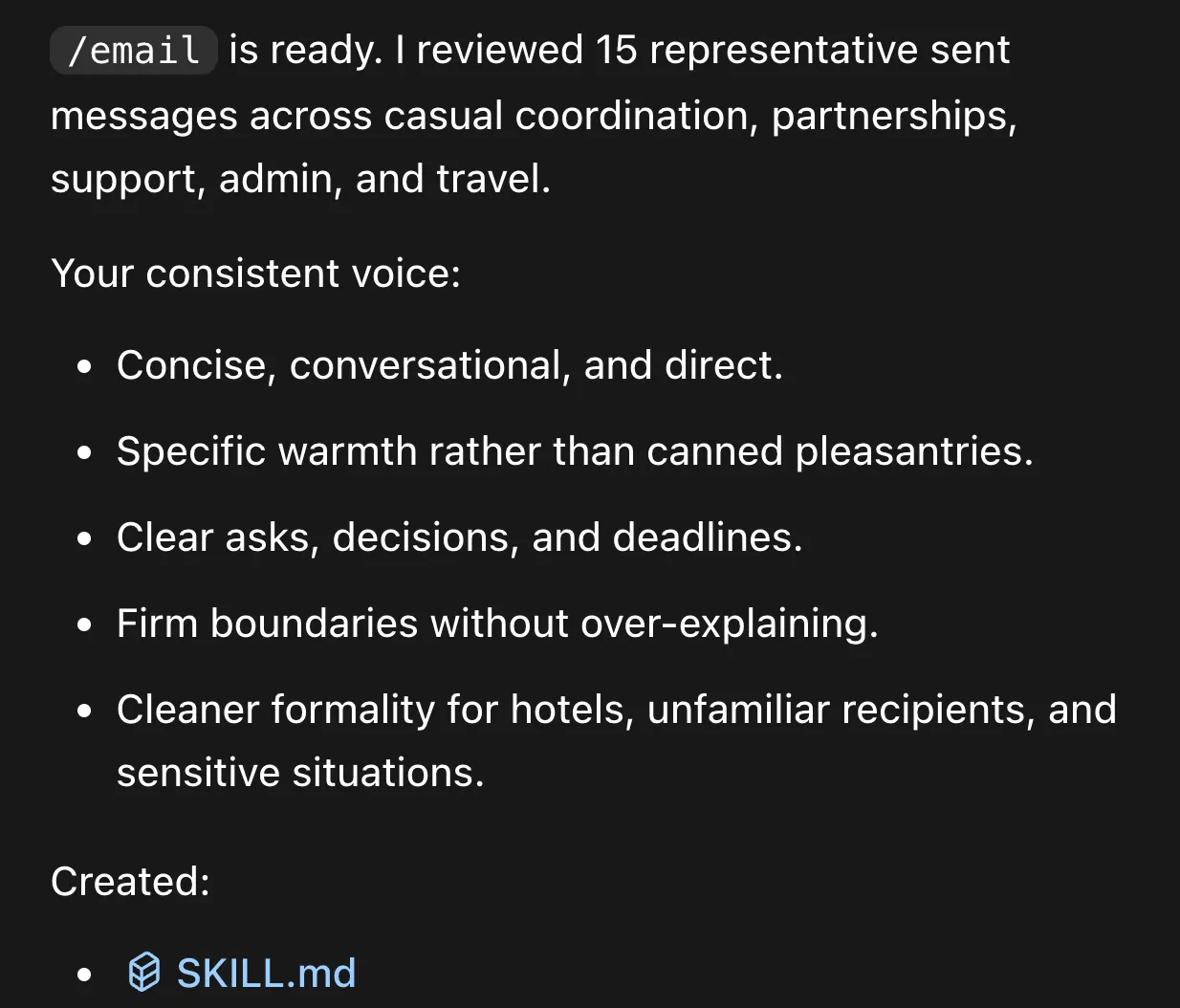
Analyze my sent emails and create an /email skill to draft replies that sound like me. Then use /email to draft replies to the emails that most need a follow-up. Share the drafts here first for me to review in a numbered list.AI should summarize your voice like this before drafting:
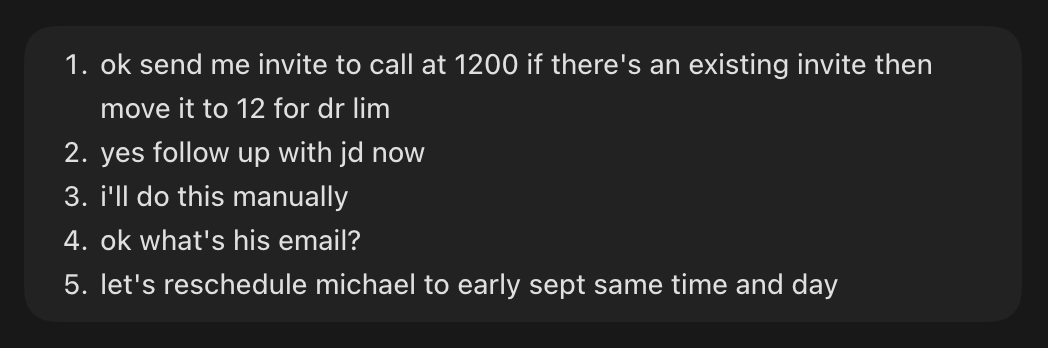
My recommendation: Always ask AI to “share before and after changes in a numbered list” so you can easily review each line and reply with something like “update 1 and 3 but not 2.”
Here’s how I typically reply to AI’s suggestions:
After you finish iterating on the email drafts, ask AI to update the /email skill with your feedback so future drafts need fewer revisions.
By the way, ChatGPT also has a “write like me” feature. To find it, go to ChatGPT on the web, open Settings → Personalization, and turn on Writing style.
4. Book and prep for meetings
My AI chief of staff schedules all meetings for me so I don’t have to click around Google Calendar. Paste this into your Chief of Staff thread:
Review my email, calendar, meeting notes, and relevant documents. Return:

1. Meetings that still need to be booked.
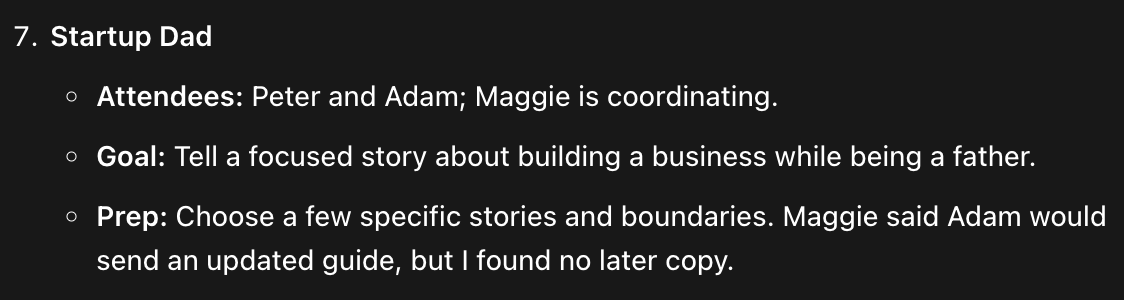
2. Upcoming meetings that need prep.
3. Scheduling conflicts I should fix.
It should return upcoming meetings with details like this:
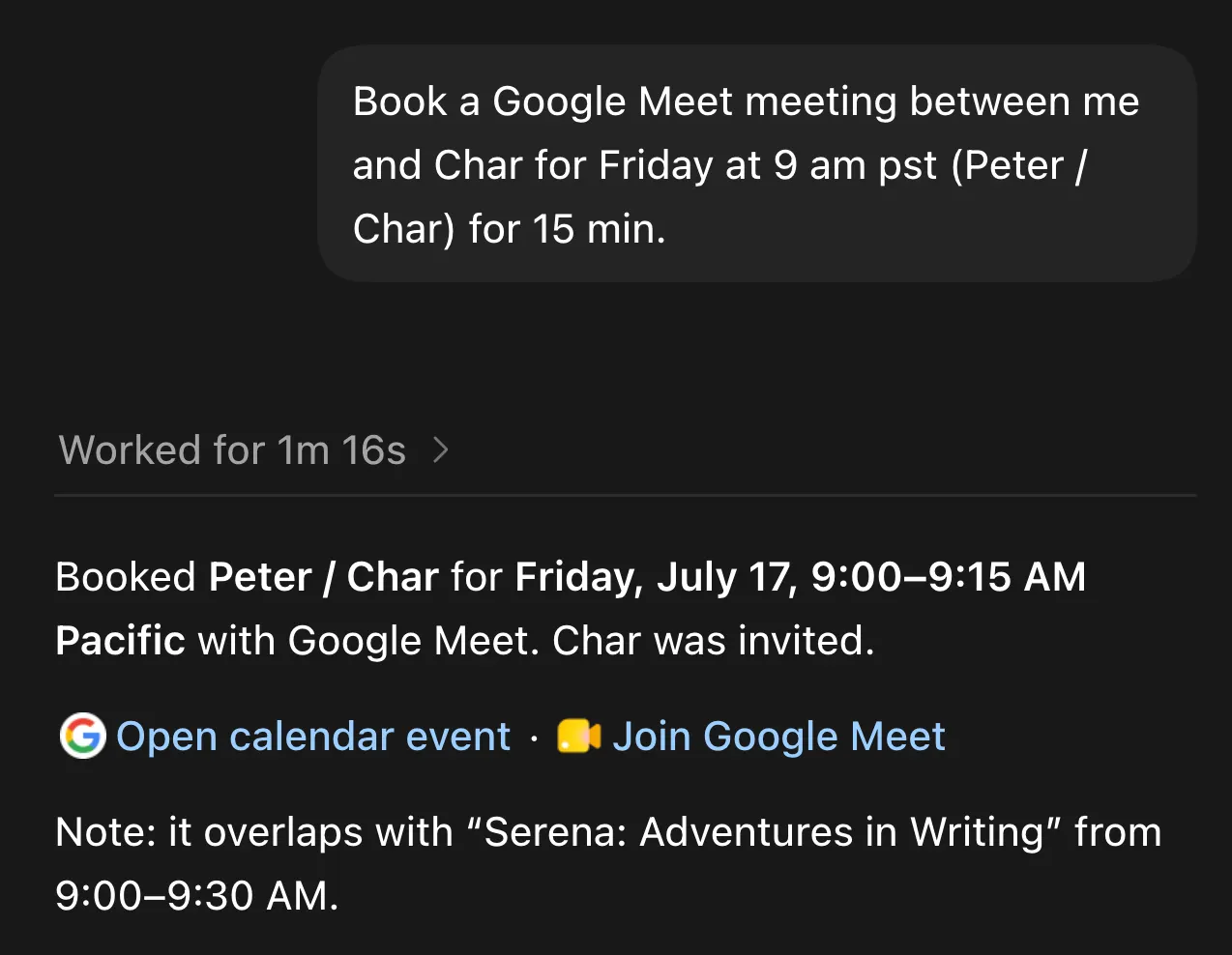
To book a new meeting, just reply in the same thread with something like:
Draft a 30-minute invite with [name or email] for [day and time]. Show me the invite and any conflicts before sending.Here’s AI flagging a scheduling conflict for a new meeting:
Asking AI to read emails and book meetings manually still takes time. Next, let’s schedule daily briefs so your chief of staff can help you proactively.