Connect your work apps
Wait…can I trust AI with my app data?
This is the first question I get from my non-AI pilled friends when I ask them to connect their favorite apps:
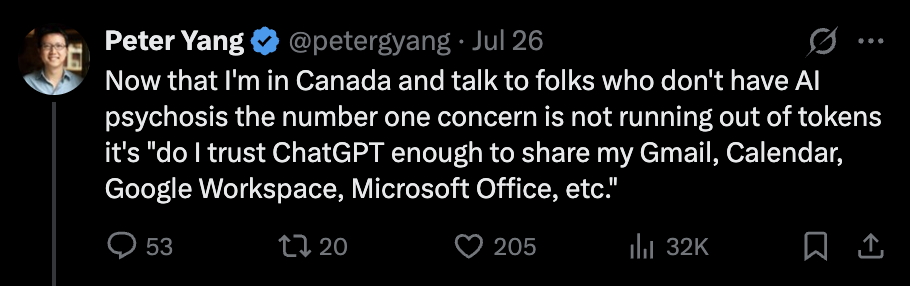
I can’t guarantee that ChatGPT, Claude, or Grok Bot won’t leak your data, but I connect my apps to AI anyway because:
- I can turn off model training on my data in ChatGPT and Claude .
- These companies work with large enterprises and don’t want data leaks.
- The upside of getting work done in your favorite apps with AI is too big to ignore.
If you’re still worried, try connecting your apps temporarily to see what AI is capable of. You can always disconnect them later.
How to connect your apps to ChatGPT
In the ChatGPT desktop app, open Plugins and connect these apps at a minimum:
- Gmail
- Google Calendar
- Documents, Presentations, Spreadsheets, Google Drive, and PDF
Other useful apps to connect include:
- Granola to pull meeting transcripts. You can get 3 months of Granola for free in my AI tool discounts.
- Figma to edit designs.
- Slack to catch up on threads and draft replies.
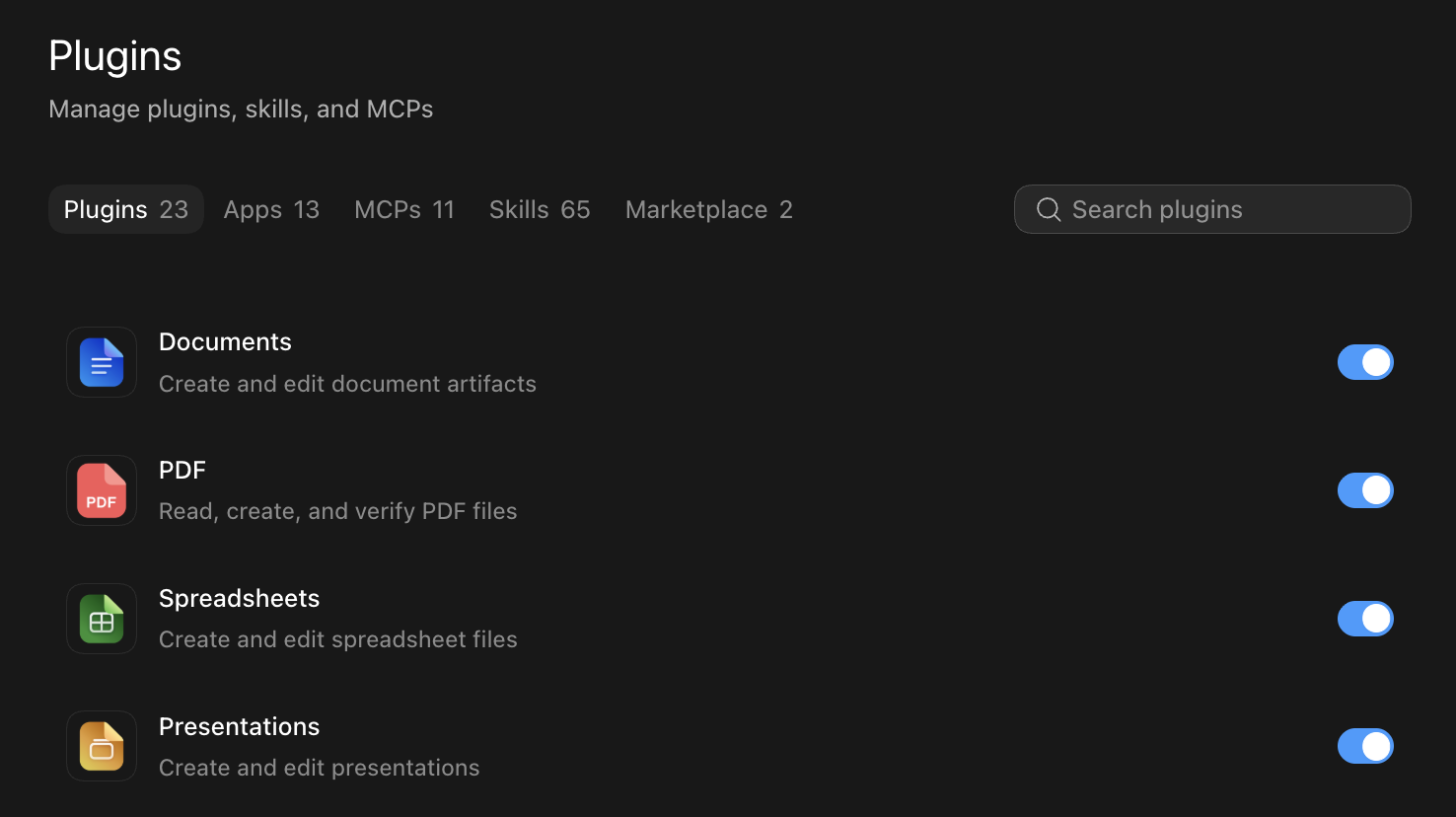
Your Plugins tab should look something like this after connecting your apps:
Optional: Connect apps to Claude or Grok Bot
You can also connect apps to Claude and Grok Bot in the same way as ChatGPT:
- In the Claude desktop app, go to Customize → Connectors and add the apps you want.
- In Grok Bot, open Marketplace from the sidebar and add the apps you want.
I think connecting apps using these official plugins is generally safe. Where I hesitate is using the cloud browser of these platforms to sign in with my password and authentication codes.
Now that you’ve connected your apps, let’s cover how to let AI manage your email and calendar.